



Standard Data Reports

Tools & Resources
Standard Data Reports
Disclaimer
- The report data available here is for UD staff INTERNAL USE ONLY. It is NOT for re-distribution to any other UD department. Should you be contacted by an outside vendor for data, direct them to the Registrar's Office Reporting team.
- UD Staff are required to protect confidential student data. PNPI guidelines and FERPA guidelines.
- Staff that require access to student or schedule of class data for their position should submit the UDSIS Access Request form. That request requires an explanation/justification of the need and will be routed to the individual's supervisor as well as the Registrar's Office for approval.
- All access is granted on a need to know basis. Due to FERPA regulations, access will not be granted without a detailed explanation as to why requested access is required and supervisor's approval.
- To access Tableau from off-campus, you must first log in to the UD VPN software.
- If the Standard Reports listed below do not provide the data you need, UD staff may submit a Registrar Data Request form for a custom report. (Login required)
- UDSIS Glossary
- Code translation lists - College / Major / Minor / Concentrations / Certificates / Doctoral / Masters
- BI Data Dictionaries
- How to read TERM codes
This option allows to save a 'view' for a previously prompted report so the next time you access Tableau, you don't have to select the same prompts to run the report.
a. Access Tableau and click the report to run, as you would normally.
b. Select all the prompts for the report you want to Save/Customize (Note: This will only have to be done once, unless you want a different view)
c. When done, click View: Original
d. Complete the options

e. The next time you open the report, instead of selecting prompts, you can immediately click ‘view: Original’ and you should notice your saved report in ‘My views’ section. Click the report and the report should run
This option allows an email to be sent to you (after a 'view' has been saved) so that you do not have to select your prompts for a recurring report.
a. Access Tableau and click the report to run, as you would normally.
b. Click ‘Watch’ and then ‘Subscriptions’
c. Complete the options
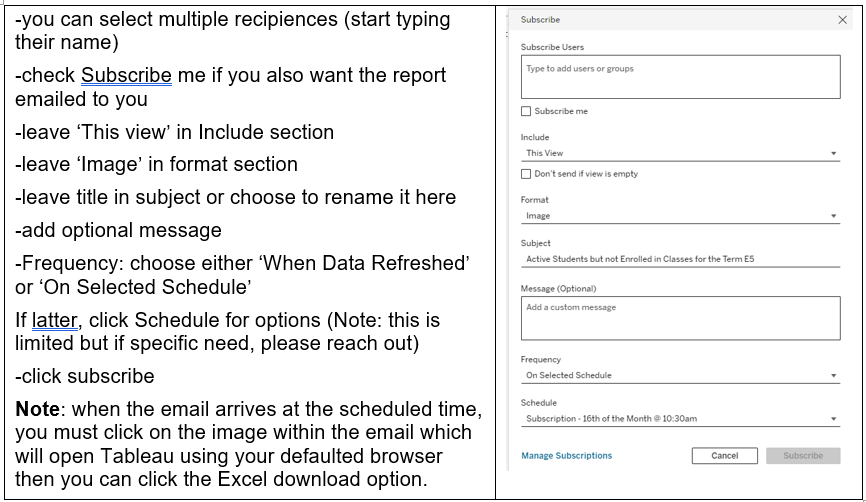
Note: the report is not attached to the email. Clicking on the image, Tableau will open up a browser for that report and then you would choose your download option.
Standard Reports:
If the Standard Reports listed here do not provide the data you need, UD staff may submit a Registrar data request for a custom report. (Login required).
Advisor Student Counts
Note: This report is being reviewed. Send questions to registrar-datarequest@udel.edu.
Report based off of Faculty Advisor and Student data and is a crosstab that ideas the counts of students assigned to Advisors based on prompts selected.
Instructions:
Select a View (“Advisor Student Counts”)
Use the “Select term(s) to begin” dropdown to choose an academic term. Make sure to click 'Apply' All other prompts are optional.
Use the PDF or Excel icons on the left to download. Select sheet ‘Advisor Student Counts’.
Students with Incomplete grades (A1)
May be run by Colleges or Departments prior to the 10th day of the following semester, to check for students in jeopardy of a negative Academic standing due to the change of an Incomplete grade.
Instructions:
Select a View (“Students with Incomplete Grades A1”)
Use the “Select term(s) to begin” dropdown to choose an academic term. The report will return students who have that term on their record in UDSIS. Make sure to click 'Apply' All other prompts are optional.
Use the PDF or Excel icons on the left to download. Select sheet ‘A1’.
Students with Term GPA LT 2.0 and CUM GPA GT 1.999 (A2 & A3)
May be run by Colleges or Departments to identify students for outreach prior to receiving a derogatory academic standing. Also included are semester classes and grades.
Instructions:
Select either a View (“Students with Term GPA LT 2.0 and CUM GPA GT 1.999 A2” or "Students with Term GPA LT 2.0 and CUM GPA GT 1.999 with Courses A3")
Use the “Select term(s) to begin” dropdown to choose an academic term. The report will return students who have that term on their record in UDSIS. Make sure to click 'Apply' The rest of the prompts are optional. If a value is not showing then it is not applicable to the term selected.
Use the PDF or Excel icons on the left to download. Select sheet ‘A2' or 'A3'.
Students on Probation (CUM GPA LT 2.0) (A4)
Note: this report is no longer valid.
Lists student Cum GPA and Deficit points.
Instructions:
Select a View (“Students on Probation (CUM GPA LT 2.0) A4”)
Use the “Select term(s) to begin” dropdown to choose an academic term. The report will return students who have that term on their record in UDSIS. Make sure to click 'Apply'
Use the PDF or Excel icons on the left to download. Select sheet ‘Students on Probation (CUM GOA LT 2.0)’.
Students Active for Term by Major/Minor with all plans and all advisors (A5)
Note: After review, A5 has been removed from our Standard Reports and has been combined with A5-Plan. Please contact registrar-systems@udel.edu for immediate questions/concerns/issues.
Students Active for Term by Major/Minor with all plans and plan advisor (A5-Plan)
Obtain lists of all students and their plans, and all assigned Advisors. Includes GPA. Results may be filtered to highlight a specific range.
Instructions:
Select a View (“Students Active for Term by Majors/Minors with all plans and plan advisors A5-Plan”)
Use the “Select term(s) to begin” dropdown to choose an academic term. The report will return students who have that term on their record in UDSIS. Make sure to click 'Apply' The rest of the prompts are optional. If a value is not showing then it is not applicable to the term selected.
Use the PDF or Excel icons on the left to download. Select sheet ‘Students Active for Term by Major/Minor with all plans and plan advisor A5-Plan’.
Faculty Advisor and Students Assigned by term (A6)
May be run by Colleges or Departments to obtain a list of all students assigned to an Advisor for the term.
Instructions:
Select a View (“Faculty Advisor and Students Assigned (by term)”)
Use the “Select term(s) to begin” dropdown to choose an academic term. The report will return students who have that term on their record in UDSIS. Make sure to click 'Apply' The rest of the prompts are optional. If a value is not showing then it is not applicable to the term selected.
Use the PDF or Excel icons on the left to download. Select sheet ‘Faculty Advisor and Students Assigned (by term)’.
Students Enrolled in more than one Pass/Fail Course (A7)
May be run by Colleges or Departments to advise students who are enrolled in more than one Pass/Fail course for the term, in violation of UD policy.
Instructions:
Select a View (“Students Enrolled in more than one Pass-Fail Course A7”)
Use the “Select term(s) to begin” dropdown to choose an academic term. The report will return students who have that term on their record in UDSIS. Make sure to click 'Apply' The rest of the prompts are optional. If a value is not showing then it is not applicable to the term selected.
Use the PDF or Excel icons on the left to download. Select sheet ‘A7’.
UD Student Advisor-ADD (A8)
This report creates a "starter" file as input to the Student Advisor Batch Assignment Process (Training Required).
All active students for the term for the prompted majors/minors(s) who do NOT have an ADVR Advisor. Edit this file to add the assigned ADVR advisor and then run the batch assignment process.
Instructions:
Select a View (“UD Student Advisor-ADD A8”)
Use the “Select term(s) to begin” dropdown to choose an academic term. The report will return students who have that term on their record in UDSIS. Make sure to click 'Apply' The rest of the prompts are optional. If a value is not showing then it is not applicable to the term selected.
Use the PDF or Excel icons on the left to download. Select sheet ‘UD Student Advisor-ADD A8’.
Majors Only AS Students Active for Term by Majors with all plans and ADVR plan advisor (A8-AS)
Submit UDSIS Data Request form
UD Student Advisor-REMOVE (A9)
This report creates a "starter" file as input to the Student Advisor Batch Process (Training Required).
It will list all current advisees of the selected Advisor. Staff edit the file and use it to remove advisees from the Advisor in the batch process.
Submit UDSIS Data Request form
Advisee Plan Audit (A10)
This report lists all students active in the prompted term who have "inactive" plans listed at Records and Enrollment > Student Background Information > Student Advisor. These plans are highlighted in yellow.
Staff can edit the advisor information, either updating the Academic Plan if the advisor is still valid, or totally removing the advisor row. The student's active programs/plans are listed to aid in this.
Submit UDSIS Data Request form
UD Student Advisor-SWAP (A11)
This report creates a "starter" file as input to the Student Advisor Batch Process (Training Required).
It lists all students with the prompted plan and the advisor(s) for that plan. If students are assigned one advisor for their beginning years in a plan, and then switched to a different advisor for the SAME plan, Staff can edit this file to accomplish the swap.
NOTE: If students are not enrolled in classes, they will no longer appear on this report after the 10th day of classes (Fall/Spring) or after the Academic Penalty deadline (Winter/Summer).
Instructions:
Select a View (“UD Student Advisor-SWAP A11”)
Use the “Select term(s) to begin” dropdown to choose an academic term. The report will return students who have that term on their record in UDSIS. Make sure to click 'Apply' The rest of the prompts are optional. If a value is not showing then it is not applicable to the term selected.
Use the PDF or Excel icons on the left to download. Select sheet ‘UD Student Advisor-SWAP’.
Enrollment Requests by Instructor
This report can be used to track courses with multiple faculty listed especially for Independent Study/Research courses.
Instructions:
Select a View (“Enrollment Requests by Instructor")
Use the “Academic Term” dropdown to choose an academic term. The report will return students who have that term on their record in UDSIS. Make sure to click 'Apply.' The rest of the prompts are optional. If a value is not showing, then it is not applicable to the term selected.
Use the PDF or Excel icons on the left to download. Select sheet ‘Enrl Req by Instr'. Make sure to click 'Apply.'
Degree Clearance-Temporary Grades
This report pulls enrolled students who have temporary grades (I, S, N, U, and blanks) for a given term. It can be pulled for undergrad and graduate students as well as for specific colleges, plans and expected graduation term(s).
Instructions:
Select a View (“Temporary Grades")
Use the “Academic Term” dropdown to choose an academic term. The report will return students who have that term on their record in UDSIS. Make sure to click 'Apply.' The rest of the prompts are optional. If a value is not showing, then it is not applicable to the term selected.
Use the PDF or Excel icons on the left to download. Select sheet ‘Temporary Grades'.
Student Enrollment with classes by Term
This report pulls class information in the term for students who meet the selected criteria. If you are looking to pull enrollment without classes, click Student Enrollment by Term.
Note: due to the nature of the data, some prompts can take some time.
Instructions:
Select a View (“Student Enrolled by Term”)
Use the “Select term(s) to begin” dropdown to choose an academic term. The report will return students who have that term on their record in UDSIS. Make sure to click 'Apply' The rest of the prompts are optional. If a value is not showing then it is not applicable to the term selected.
Use the PDF or Excel icons on the left to download. Select sheet ‘Enrollment by Term’.
Students Active for Term by Program (E1/E1-ORG)
Students who are active plan but may not be term active; selectable by Academic Program (college) or Academic Organization (department). Note: the time this report is run (before/after drop/add) can provide different results. Includes bio/demo information, program/plan details and term enrollment information.
Instructions:
Select a View (“Students Active for Term by Program” or “Students Active for Term by Academic Org”)
Use the “Select term(s) to begin” dropdown to choose an academic term. The report will return students who have that term on their record in UDSIS.
Use the PDF or Excel icons on the left to download. Select sheet ‘E1’.
Notes:
Prior to the end of free drop/add, this report will include all students for a term regardless of enrollment status. Once drop/add has ended for a term, this report will only include students who have enrollment in that term.
Students Active for Term by Major/Minor with all plans (E2/E2-COS)
Students who are active in a term, selectable by Academic Plan (major/minor/course of study/masters/doctoral/etc). Includes bio/demo information, program/plan details and term enrollment information.
Instructions:
Prior to the end of free drop/add, this report will include all students for a term regardless of enrollment status. Once drop/add has ended for a term, this report will only include students who have enrollment in that term.
Select a View (“Students Active for Term by Major/Minor with all Plans”)
Use the “Select term(s) to begin” dropdown to choose an academic term. The report will return students who have that term on their record in UDSIS.
Use the PDF or Excel icons on the left to download. Select sheet ‘E2".
Notes:
Prior to the end of free drop/add, this report will include all students for a term regardless of enrollment status. Once drop/add has ended for a term, this report will only include students who have enrollment in that term.
Grade Distribution Crosstab with average (E3)
Provides a Grade Distribution report by course subject and term. This report requires approval from your Department Chair.
Instructions:
Submit the UDSIS Data Request form. In the "Other Information" box, specify "E3 - Grade Distribution".
Provide the desired Academic Term, Course Subject Code and Course Catalog number(s).
Class Roster by Term (E4)
Provides a class roster of those currently enrolled by term, in a specific course and section.
After grades are posted, this report will also list student course grades.
Instructions:
Select a View (“Class Roster by Term”)
Use the “Select term(s) to begin” dropdown to choose an academic term (required) and subject/catalog number/section number.
Use the PDF or Excel icons on the left to download. Select Sheet 'E4'.
Active Students but not Enrolled in Classes for the term (E5)
Provides a list of students who are active in program and term active but not enrolled in the selected term. Includes Advisor Name, Email and Role.
Use this report to identify students that are eligible for discontinuation at the end of drop/add in Fall and Spring if they do not enroll or declare a leave of absence/sustaining status.
Instructions:
Select a View (“”)
Use the “Select term(s) to begin” dropdown to choose an academic term. The report will return students who have that term on their record in UDSIS.
Use the PDF or Excel icons on the left to download. Select sheet ‘E5’.
Notes:
Prior to the end of free drop/add, this report will include all students active for the selected term that are not yet enrolled.
Enrollment Census reports (E6)
This report menu provides enrollment figures for the semester with breakdowns available by Gender, Time Status and Residency.
Optional prompts within these categories allow colleges/departments to request their specific student data.
Notes:
Official enrollment numbers are posted on the Registrar’s website. More information will be posted here when these reports are available.
Courses with Seat Availability - Newark On-Campus Only (E7)
Provides a list of courses by subject(s), with their Enrollment Totals and Caps, as of Start of Day when the report is run.
Instructions:
Select a View (“Courses with Seat Availability - Newark On-Campus Only”)
Use the “Select term(s) to begin” dropdown to choose an academic term.
Use the PDF or Excel icons on the left to download. Select sheet ‘E7’.
Course Enrollment Caps and Totals (E8a)
Provides a list of courses by subject(s), with their Enrollment Totals and Caps, as of Start of Day when the report is run. Choose the report version including course subtotals, or the list-only version.
Instructions:
Select a View (“Course Enrollment Caps and Totals”)
Use the “Select term(s) to begin” dropdown to choose an academic term.
Use the PDF or Excel icons on the left to download. Select sheet ‘E8a’.
Grade Roster Status for MidTerm Grades (E9)
Provides a list of courses by subject(s), with their MidTerm Grade Roster status, as of Start of Day when the report is run.
Instructions
Select a View (“Grade Roster Status for MidTerm Grades”)
Use the “Select term(s) to begin” dropdown to choose an academic term.
Use the PDF or Excel icons on the left to download. Select sheet ‘E9’.
Grade Roster Status for Final Grades (E10)
Provides a list of courses by subject(s), with their Final Grade Roster status, as of Start of Day when the report is run.
Instructions:
Select a View (“Grade Roster Status for Final Grades”)
Use the “Select term(s) to begin” dropdown to choose an academic term.
Use the PDF or Excel icons on the left to download. Select sheet ‘E10’.
Active Students with Registration Holds (E11)
Provides a list of students that currently have Registration Holds. Prompts include Service Indicator Hold and Service Indicator Reason.
Instructions:
Select a View (“Active Students w Registration Holds”)
Use the “Select term(s) to begin” dropdown to choose an academic term.
Use the PDF or Excel icons on the left to download. Select sheet ‘E11’.
Waitlist Roster by Term, Subject, Catalog Number, and Section (E12)
Provides a waitlist roster of those currently waitlisted by term, in a specific course and section.
Instructions:
Select a View (“Waitlist Class Roster by Term, Subject, Catalog Number and Section”)
Use the “Select term(s) to begin” dropdown to choose an academic term.
Use the PDF or Excel icons on the left to download. Select sheet ‘E12’.
Active 4+1 Students (E13)
Submit UDSIS Data Request form temporarily.
Provides a list of active students with 4+1 coding by college.
Instructions:
Due to the nature of 4+1 student activation, this report is not available via self-service and should be requested through the UDSIS Data Request form.
In the "Other Information" box, specify "Active_4plus1_Student” report from Tableau.
GRAD001. Beginning/End of Term Report*
Course registration listing for each student in selected graduate academic plan(s). Includes only graduate students who are registered. There is no longer any difference between the Beginning and End of Term Report; the grade column will always appear, and will be populated as the grades are entered into UDSIS. Full-screen view recommended.
Instructions:
1. Select Term.
2. Select an entry in any column of the department listing to generate report.
a. For a list of departments in your college only, use the "Filter list by college (optional)" selector next to the term selector. Note that some academic plans fall under "Office of the Dean".
b. To select multiple items, hold down the Ctrl key while clicking.
3. Click "Expand Report" to hide the department selection panel and view more of the report; click "Show Selection List" to go back to the standard view.
4. Use the Excel icon to download; select sheet "BoT Report".
*For questions/ concerns, please contact Bill Barnett
Students Expecting to graduate by Term (G1/G2/G3)
Active Students expected to graduate in Spring based upon expected grad term. Note: Summer is usually also selected.
May be used to verify credits needed and/or requirements to be met. Note: Summer is usually also selected.
Instructions:
Select a View (“Students Expecting to Graduate”)
This report pulls current term and has no option.
Use as many filters as you require
Use the PDF or Excel icons on the left to download. Select sheet ‘Students Expecting to Graduate’.
Degrees/Certificates Conferred with Plan by Program and Grad Term (G4/G5)
Provides a list of students who have earned their degree or a certificate in the Program and Term specified. Note that degrees are posted by the Registrar's Office a few weeks after graduation. Note: Previous Fall and Current Winter are usually selected.
Instructions:
Select a View (“Degrees Conferred by Program and Plan”)
Use the “Select term(s) to begin” dropdown to choose an academic term.
Use the PDF or Excel icons on the left to download. Select sheet ‘G4’.
Students Expected to Graduate and Students with Degrees Conferred
Provides a list of students invited to participate in Spring commencement ceremony. Prompts for Spring term and includes students already conferred or expected to graduate between prior Summer and subsequent Summer (ex: '2026 Spring Semester' includes students graduating between Summer 2025 and Summer 2026).
Instructions:
Select a View (“Students EGT with Degr Confrd”)
Use the “Commencement Term” dropdown to choose a Spring Semester
Use the PDF or Excel icons on the left to download.
Select "Students EGT with Degr Confrd"
SOC-All (S1)
Lists all courses by term, subject & section--Active, Tentative, Stop Further Enroll, Cancelled by term. Notes are not shown.
Instructions:
Select a View (“SOC-ALL”)
Use the “Select term(s) to begin” dropdown to choose an academic term.
Use the PDF or Excel icons on the left to download. Select sheet ‘S1’.
Reserve Cap - SOC ALL w/Optional Honors Prompt (S3)
Provides Schedule of Class information, including class status, enrollment, reserve cap and requirement groups.
Note: Campus has been added to report.
Instructions:
Select a View (“SOC - All Reserve Caps”)
Use the “Select term(s) to begin” dropdown to choose an academic term.
Use the PDF or Excel icons on the left to download. Select sheet ‘S3’.
Instructor Teaching Schedule Report (S4)
Reports an Instructor's teaching schedule history, including enrollment totals and caps.
Instructions:
Select a View (“Instructor Teaching Schedule Report”)
Use the “Select term(s) to begin” dropdown to choose an academic term and the “Instructor Primary Name” dropdown to choose an instructor.
Use the PDF or Excel icons on the left to download. Select sheet ‘S4’.
Final Exams Schedule (S5)
Exams scheduled for the Newark Campus.
Instructions:
Select a View (“Final Exams Schedule”)
Use the “Select term(s) to begin” dropdown to choose an academic term.
Use the PDF or Excel icons on the left to download. Select sheet ‘S5’.
Enrollment (S6)
(excludes Independent Study)
Lists courses taught by the Instructor, except for Independent Study classes, with enrollment totals, course information and meeting start/end dates.
Instructions:
Select a View (“Enrollment”)
Use the “Select term(s) to begin” dropdown to choose an academic term.
Use the PDF or Excel icons on the left to download. Select sheet ‘S6’.
Enrollment - Total Credit Hours (S7)
Shows total enrollment credit hours generated per course by term. Formula is: max credit hours (x) total number of students rolled.
Instructions:
Select a View (“Enrollment – Total Credit Hours”)
Use the “Select term(s) to begin” dropdown to choose an academic term.
Use the PDF or Excel icons on the left to download. Select sheet ‘S7’.
Class and Class Enrollment Instructor (S9)
Errors Prior to Students Registering for Class.
Instructions:
Select a View (“Class and Class Enr Extract Errors”)
Use “Academic Term Description” dropdown to choose an academic term.
Use the PDF or Excel icons on the left to download. Select sheet ‘S9’.
SOC - w/Notes and Academic Org (S10)
Instructions:
Select a View (“SOC - w/Notes & Academic Org”)
Use the “Select term(s) to begin” dropdown to choose an academic term.
Use the PDF or Excel icons on the left to download. Select sheet ‘S10’.
SOC - Class Essentials (S11)
Instructions:
Select a View (“SOC-Essentials”)
Use the “Select term(s) to begin” dropdown to choose an academic term.
Use the PDF or Excel icons on the left to download. Select sheet ‘S11’.
SOC - Reserve Group (S12)
A listing of all reserve cap requirement numbers and reserve cap requirement group descriptions for staff to review before requesting new reserve cap requirement groups.
Instructions:
Select a View (“Reserve Group”)
Use the PDF or Excel icons on the left to download. Select sheet ‘S12’.
SOC - When was a Course Last Offered (S13)
(by Course ID# and Subj)
Class detail information regarding when a course was last offered. The report may be run either by providing a Subject Area or a Course ID#.
Instructions:
Select a View (“Last Course Offered”)
Use the “Course ID” dropdown to choose a course.
Use the PDF or Excel icons on the left to download. Select sheet ‘S13’.
SOC - Automated Waitlist Job Errors (S14)
Instructions:
Select a View (“SOC - Automated Waitlist Job Errors”)
Use the “Select term(s) to begin” dropdown to choose an academic term.
Use the PDF or Excel icons on the left to download. Select sheet ‘S14’.