



How to Request Accommodations
Request Accommodations and Send Faculty Notification Letters
At the beginning of each semester, students must send Faculty Notification Letter Emails to their professors through the DSS Portal. Accommodations will not be active in any course until these emails are sent. Professors will receive the notification within 48 hours.
How to Send Faculty Notification Letters: youtube.com/watch?v=_0n5u3VOcjA
Reminders
- Send Faculty Notification Letters at the beginning of each term. Professors will receive the notification within 48 hours. Accommodations take effect the day you send the letter and are not retroactive.
- DSS recommends communicating with your instructors to ensure you understand how accommodations will be applied in each course.
- If you have questions or concerns, promptly contact your Accommodation Coordinator for assistance.
- If using the DSS Testing Center, remember to request a testing appointment at least one (1) week in advance of your exam date.
Steps to Send Your Faculty Notification Letters
Step 1: Go to the DSS Portal.
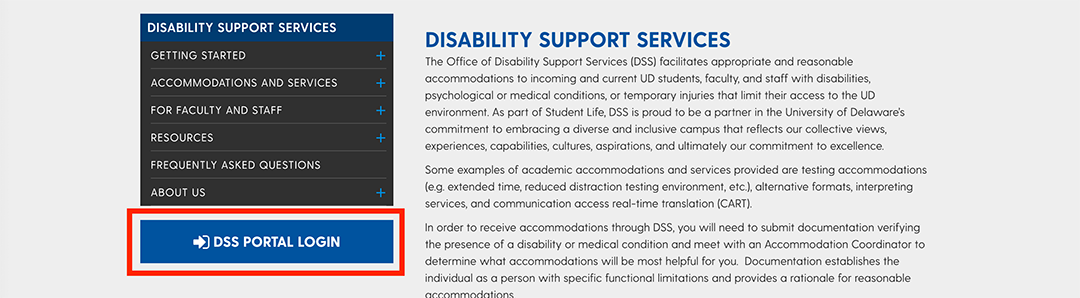
Step 2: Select “Sign In.”

Step 3: Enter your UD username and password.
Step 4: Read and sign E-Form Agreements.
You will be prompted to review and sign e-form agreements which include your rights and responsibilities and important reminders about how to use specific accommodations. It is important to review e-forms in detail so that you are familiar with your accommodations and any procedural changes.
Select “Continue to Sign Electronically” and all e-forms will be pulled into 1 page for you to read and sign.
After reviewing e-forms, electronically sign by typing in your name exactly as it appears on the screen. Then, select “Submit Form”. You will receive an email copy of your e-forms.
Step 5: Add Accommodation Requests.
The Portal will display a message “No Accommodation Request Found” when no letters have been sent for the current term. Select “Add Requests” in the "Accommodation Requests” tile to proceed with requesting letters.
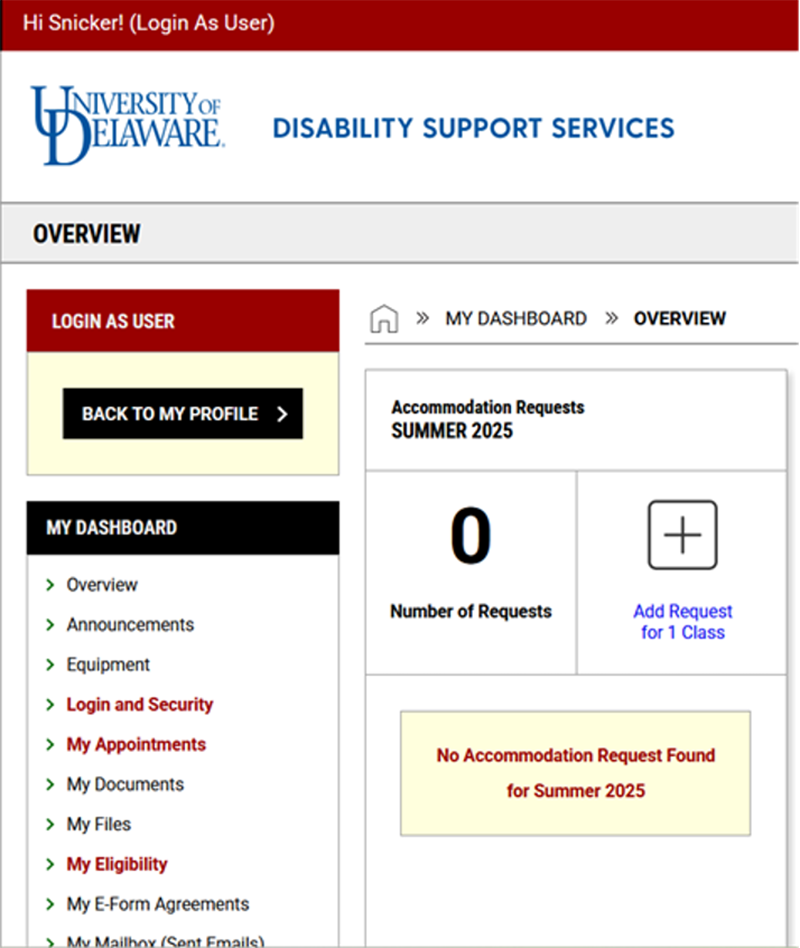
Step 6: Select your courses.
Classes for the current term will be displayed. Select the box next to each class in which you’d like to request accommodations. Then, select “Continue to Next Step.”
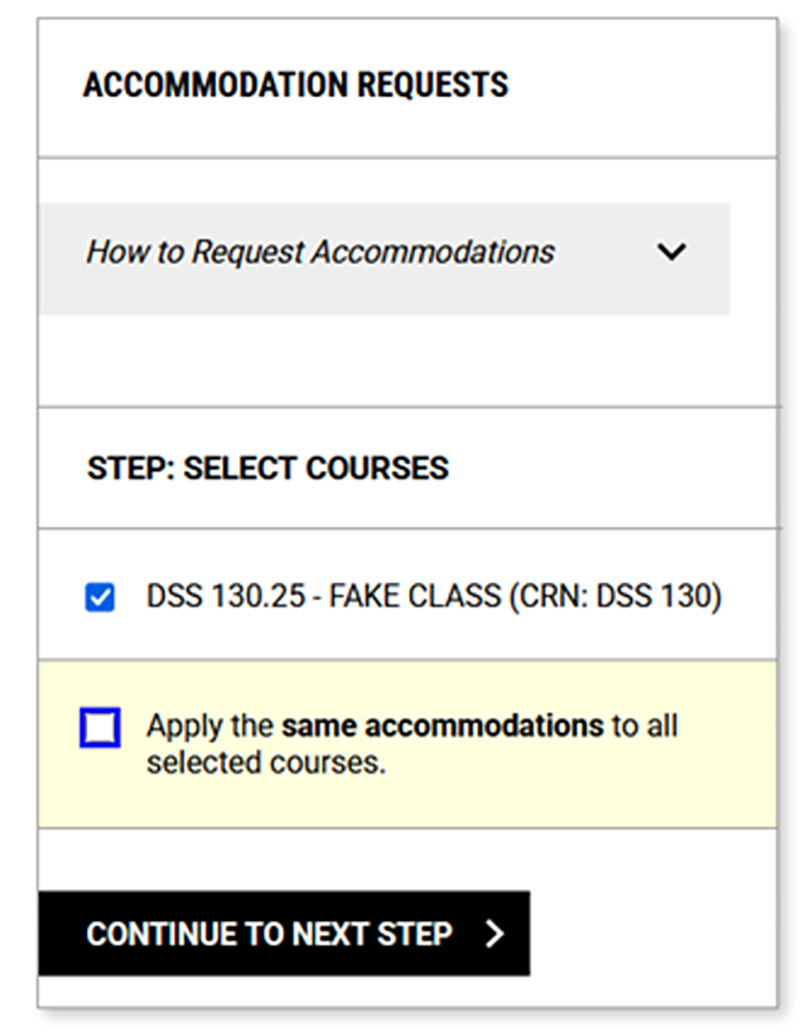
Step 7: Choose specific accommodations.
Under each class, select the specific accommodations needed. DSS recommends customizing accommodations for each course.
Step 8: Submit your request.
Once you’ve made your selections, select "Submit Request."
The screen will display a message confirming that your action was completed. You can view the accommodations you requested for each class from this page.


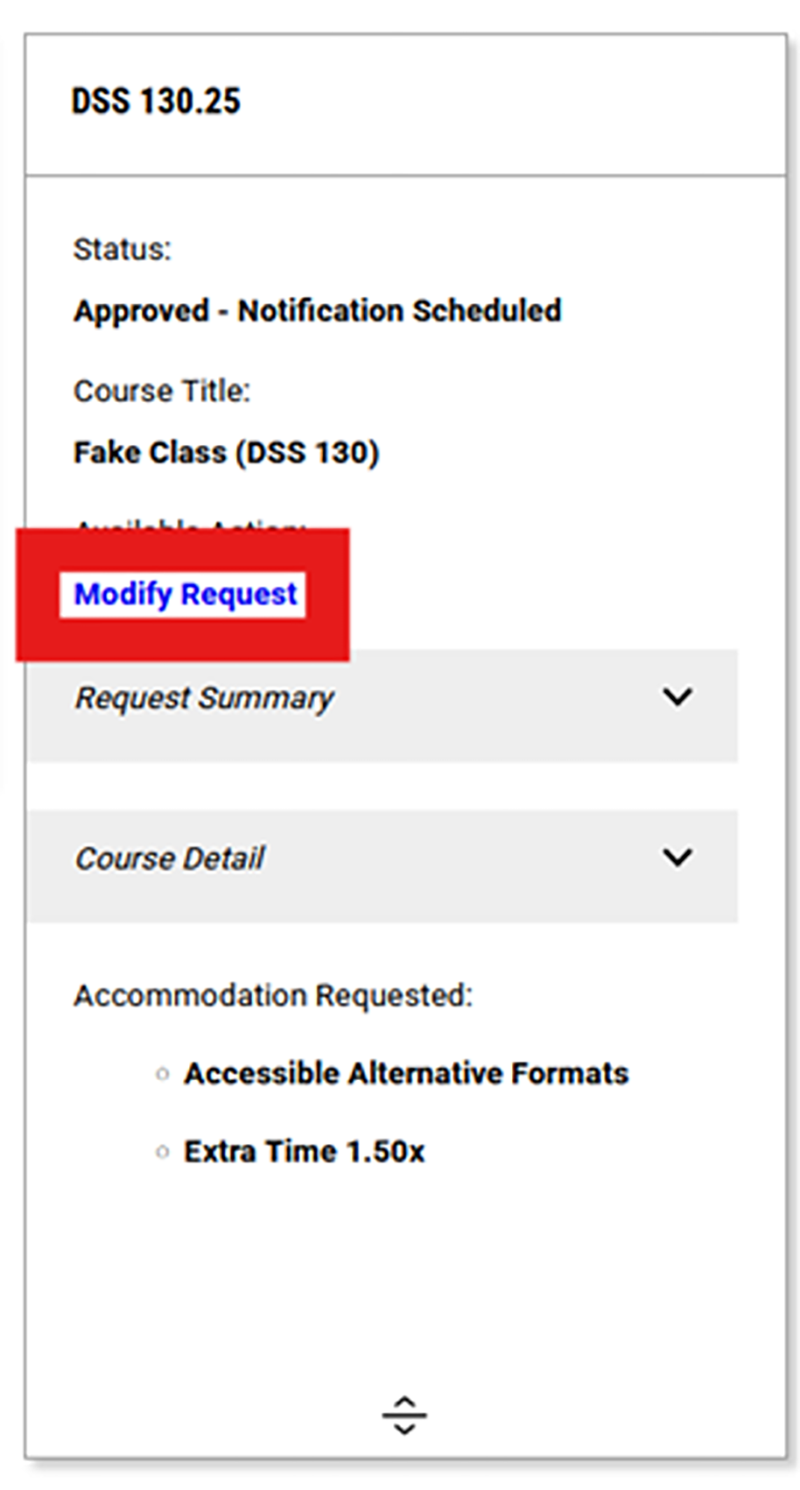
After sending Faculty Notification Letters, you can:
- Access your letters: After emails are sent to professors, you can print PDF copies from the Portal or find them in your Portal mailbox.
- Follow up with professors: DSS suggests that you contact each professor to discuss how your accommodations will be implemented in their specific course.
- Add courses later: If you enroll in additional courses after sending notification emails, you must request new letters for those courses to receive accommodations.
Changing or Updating Accommodations
To request changes to existing accommodations and services, please contact your Accommodation Coordinator or the DSS office at dssoffice@udel.edu or 302-831-4643.