To disable (turn off) Mac OS X 10.5 (Leopard) or Mac OS X 10.6 (Snow Leopard) file sharing, follow these steps:
- From the Apple menu, click System Preferences.
- In the System Preferences window, click the Sharing icon
in the third row. This icon is circled in white in the following graphic:
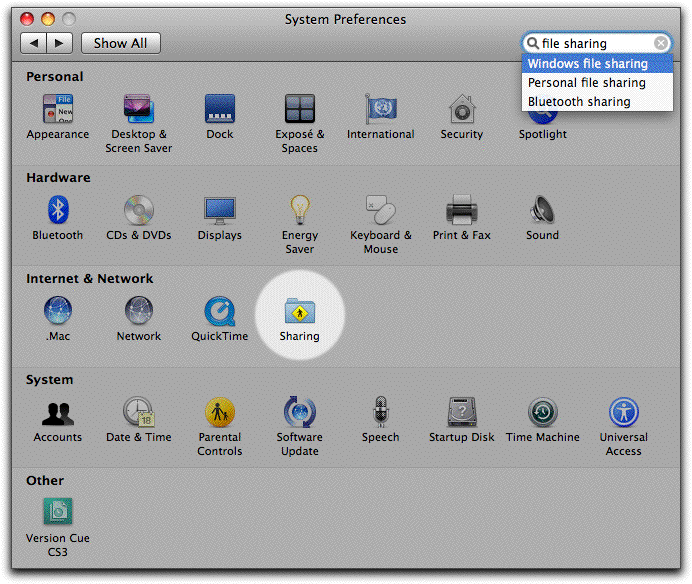
- You will see the Sharing window, which looks similar to the one below:
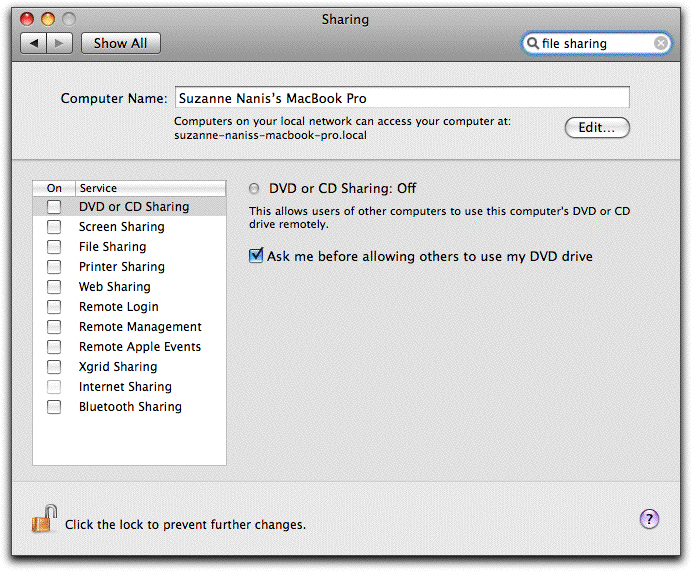
- Confirm that the checkbox in front of File Sharing in the left-hand column does not contain a check mark. If it does, click to remove it. Removing a check mark will disable file sharing on your computer, which will make your computer more secure.
- Close the Sharing window.
|