
The WinSun terminals are special Sun Ray terminals used to connect to a Microsoft Windows server. WinSun terminals are located in Smith Hall, the Student Centers, Christiana Commons, Carpenter Sports Building, and the Rodney complex.
The WinSun "express" terminals in Smith Hall provide an excellent working environment for Windows applications for creating, editing, and printing your documents.
The WinSun kiosks in Christiana Commons, the Rodney complex, the Student Centers, and the Carpenter Sports Building provide an excellent working environment for Windows applications for creating, editing, and printing your documents. All Microsoft Office applications are available in addition to Web browsing, mail, and using ssh to connect to Copland and/or Strauss.
As a WinSun user, you start a session by selecting an application from the standard kiosk welcome panel. To do so, click one of the three buttons: MS Windows, Help, or Restart. The welcome kiosk panel is displayed and controlled by the Sun Ray server. Selecting the MS Windows button starts a terminal service connection to the Windows server. The Help and Restart buttons run applications on the Sun Ray server to display a Firefox help Web page and refresh the welcome kiosk panel.
Sun Ray smart cards are not available for use on WinSun terminals.
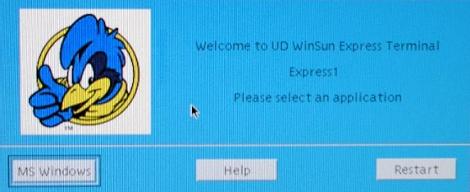
You might see an unoccupied WinSun terminal without a standard welcome kiosk panel. It could show a MS Windows desktop or a Browser window.
This occurs when the terminal's previous user leaves the WinSun terminal after selecting the MS Windows or Help button. If the user doesn't return within a reasonable time, you may end the current WinSun terminal session. For details, see Ending a WinSun Terminal Session.
This will bring up the MS Windows desktop.
Help
This will display help about using the WinSun Express terminal.
Restart
This will refresh the standard welcome kiosk panel.
USB keys are convenient personal-storage devices with capacities ranging to many gigabytes. They may store files created on PCs, Macs, and UNIX/Linux systems and be used on the WinSun Express Terminals. The USB keys should be formatted for use on a PC, which is how they are sold by vendors.
Insert the USB key into the USB port. Select the MS Windows button. On the MS Windows desktop, double-click the My Computer icon and, listed under Other, you should see USB on Remote Desktop.
Note: It may take awhile for large-capacity drives to appear in the window.
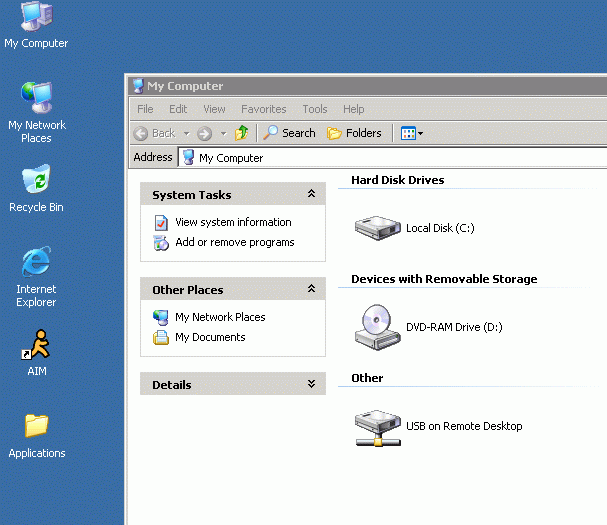
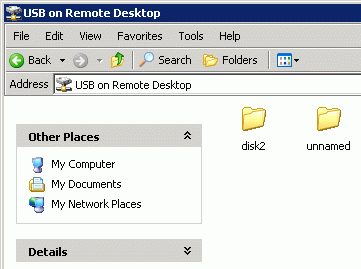
You will notice two folders (or more depending on the type of USB key). One will always be disk# and the other will be the volume name. Double-click disk# to open your USB key. The files and folders on your USB key will be displayed:
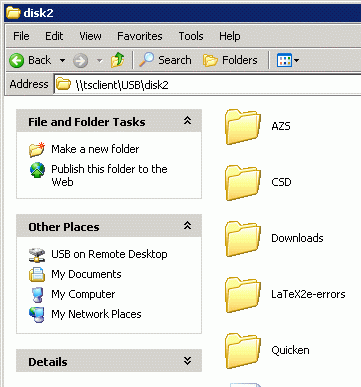
Before you unplug your USB key, make sure to log off the Windows desktop to make sure all the files are closed properly.
To use audio on the WinSun terminals, you need to plug in a headphone set. If you have no sound, the volume is turned off. There are three volume-control keys at the upper-right of the keyboard. From left to right are a mute (toggle) key, a decrease-volume key, and an increase-volume key.
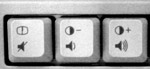
Remember that only one audio application can be used at a time. Audio and video used in Sakai@UD works best using Internet Explorer (IE).
If you print your file, it will be sent to the print release station. The monitors attached to these stations list the print jobs currently waiting to be printed. When you go to the station to claim your print job (have it printed), click the document name to release it for printing. Delete any duplicate print requests (if applicable). If you have questions about how to use a Print Release Station, contact the IT Support Center.
If you have selected MS Windows, click the Start button and select Log Off. The Log Off Windows confirm window will be displayed.
Select the Log Off button on the desktop to confirm the log off.
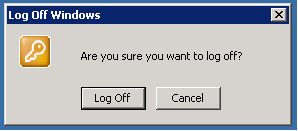
You can also use the shortcut on the desktop—Click here to Log Off windows—to end your WinSun Express terminal session.

If you selected Help, click Close window at the top of the help page under the title "WinSun Terminals at UD."
