A firewall is software or hardware that helps prevent hackers and some types of malware from getting to your computer through a network or the Internet. It does this by checking the info that’s coming from the Internet or a network and then either blocking it or allowing it to pass through to your system.
A firewall isn't the same thing as an antivirus or anti-malware app. Firewalls help protect against worms and hackers, antivirus apps help protect against viruses, and anti-malware apps help protect against malware.
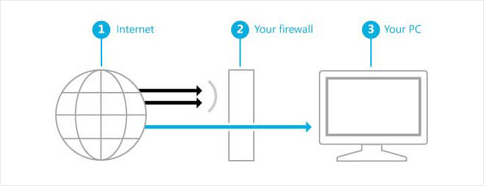
A firewall creates a barrier between the Internet and your computer. Courtesy of Windows Support.
Windows 10 Firewall
The Windows 10 Firewall comes with Windows and is turned on by default. Only one firewall should be active on a computer at any given time.
- In Search, type firewall, and then select Windows Firewall.
- Select Turn Windows Firewall on or off. You might be asked for an admin password or to confirm your choice.
macOS 10.9+ Firewall
Mac's firewall application is turned off by default. It is very important you follow these steps to turn it on.
- From the Apple menu, click System Preferences.
- In the System Preferences window, click the Security & Privacy icon in the top row.
- In the Security & Privacy window, click the Firewall tab.
- If not already enabled, click Turn on Firewall.
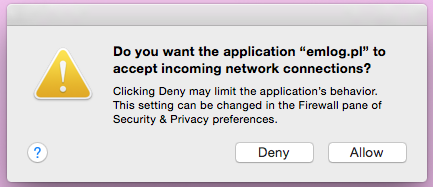
- You may see a warning like the one below. Click Allow.
- Close the Security & Privacy window.